# Introduction
## 
## *Hacking the news since 1918*
Since 1918, *The Ubyssey* has been produced entirely by student staff and volunteers, a group that has included writers, editors, photographers, videographers and illustrators. *The Ubyssey* boasts such alumni as Prime Minister John Turner, author and journalist Pierre Berton, as well as many journalists now working at publications such as *The New York Times*, *The Globe and Mail* and *The Toronto Star*.
In recent years, our team has grown to include software developers and designers who help build and maintain new features for our website, work on editorial projects and experiment with new ways of delivering the news. Our digital team has been responsible for numerous national journalism awards over the years, including the John H. MacDonald award for Best Website.
If you are a developer who is looking for more experience, or even if you're new to web development, we'd love to have you join our team!
# Our Technology
## Our Technology
We use a variety of languages, tools and frameworks at *The Ubyssey*. We try our best to stay up to date with new and emerging software, as well as current trends and best-practices. Above all else, we strive to produce products that are stable, well-tested and easy to work with.
#### *The Ubyssey* does open source!
*The Ubyssey* is committed (no pun intended) to open source development, which means all of our code is available on GitHub and we always welcome pull requests. We made the decision to open our codebase to foster a stronger development community at our paper, and also to promote collaboration with other student papers in Canada and abroad.
#### Slack
We do all of our communication via [Slack](https://slack.com/)! To get the invite to `#web-volunteers` channel send an email with your full name to our web developers at [Contact Us](https://www.ubyssey.ca/contact/)!
## Our Projects
[**Check out our repositories on GitHub**](https://github.com/ubyssey)
### Dispatch
[Dispatch](https://github.com/ubyssey/dispatch) is our custom-built publishing platform that powers [ubyssey.ca](https://www.ubyssey.ca/). It was created as a replacement for WordPress and was built with flexibility and ease-of-use in mind. Developed as an open-source project, Dispatch aims to provide a set of tools that make it easier for journalists to produce high-quality digital content. We've been using it in production for many years.
**Tech stack:** Python (Django), JavaScript (React/redux), HTML/CSS
**Repository:**
**Official Python package**:
### Ubyssey Dispatch theme
We use a separate repository to store the custom code that powers our website. This repo includes all of the frontend and backend code for The Ubyssey's main theme (what you see when you visit ubyssey.ca).
**Tech stack:** Python (Dispatch/Django), JavaScript (React), HTML/CSS
**Repository:**
# Installation
As a first step, create a GitHub account and clone our repositories:
Before you can start writing code, set up your local development environment. Docker is commonly-used virtualization software that will let you *automatically* set up a development environment with all the necessary dependencies isolated from the rest of your system.
* [**Docker (automatic) instructions**](/installation/docker)
Instructions for post-installation
* [**Wagtail setup and development**](/installation/wagtail-setup)
# Docker Instructions
(This is a Work In Progress. Please contact the current web devs if you have any questions.)
## Table of contents
* [Setup basics](#setup-basics)
* [What does setting up like this accomplish?](#what-does-setting-up-like-this-accomplish)
* [Software](#software)
* Docker
* Visual Studio Code
* [Performing Django migrations on the Docker container](#performing-django-migrations-on-the-docker-container)
* [Troubleshooting and various how-tos](#troubleshooting-and-various-how-tos)
* [How to clone repositories](#how-to-clone-repositories)
* [How to build Docker images from scratch](#how-to-build-docker-images-from-scratch)
* [Extra Docker info](#extra-docker-info)
## Setup basics
1. Install [git](https://git-scm.com/book/en/v2/Getting-Started-Installing-Git), [Docker](https://docs.docker.com/engine/), [Visual Studio Code](https://code.visualstudio.com/download), and the [Remote Development plugin for Visual Studio Code](https://code.visualstudio.com/docs/remote/remote-overview).
2. In Terminal/Command Line, within your preferred development folder:
```bash
git clone https://github.com/ubyssey/ubyssey.ca.git
cd ubyssey.ca
docker build . -t ubyssey/ubyssey.ca:latest
```
*(Or replace ubyssey/ubyssey.ca:latest with name of your choice)*
3. Again, in your preferred directory, clone either the below repo, or else clone a fork you made of it:
```bash
git clone https://github.com/ubyssey/ubyssey-dev.git
```
*(If you changed the docker image's name, make sure to also change it in docker-compose.yml in /ubyssey-dev/.devcontainer/)*
4. Set up a persistent Docker volume. (This is used to persist the database contents between Docker containers, should you ever need to delete yours)
```bash
docker volume create --name=ubyssey_db_volume
```
5. Use the [Remote Development plugin](https://code.visualstudio.com/docs/remote/remote-overview) to open the ubyssey-dev.git directory as a container
6. If the database container on Docker isn't set up yet, connect it:
This container may be named something other than ubyssey\_db. If so, type `docker ps` to find what it is named. You can also connect to it without typing terminal commands if you download Docker Desktop.
```bash
docker exec -t -i ubyssey_db bash
```
7. Once connected, setup the local database in the container.
```bash
# password is ubyssey
mysql -u root -p
create database ubyssey;
quit;
```
You have now finished setting up Docker and should now be able to develop inside the Docker container. However, we are not quite done with setup. Head over to [Wagtail setup and development](/installation/wagtail-setup) for the next steps.
## What does setting up like this accomplish?
Starting out as a new coder on an ongoing coding project is generally a difficult and time-consuming process. Even if your general computer knowledge is strong, knowledge of the specific tools involved may still be weak, and there’s almost inevitably a lot of learning to do. Furthermore, because you’re likely to have your own computer, we have little control over what you have installed, creating the risk of wasting time doing a lot of individualized troubleshooting.
Because the Ubyssey depends so much upon volunteer work from students who are busy with school work, it is necessary coder **onboarding be made as fast as possible**, so volunteers do not get caught up on the “boring stuff” of simply getting a local development environment set up. We therefore distribute **virutalized development machines** using containerization technology, specifically, Docker. This technology is often used in the tech industry alongside DevOps practices. The site and all its dependencies are packaged together in a “container”. Containers are a virtualization technology that can start up faster than traditional VMs, because many containers can share a single Linux kernel. The containerized website can run the same on any individual computer as it runs on the production environment.
## Software
### Docker
Install Docker (version `docker 19.03.x` is used in these instructions). Follow the instructions [from official Docker doc](https://docs.docker.com/). This will require you to create a docker account if you do not already have one.
Afterward install docker-compose (these instructions use `docker-compose 1.25.x`) from [here](https://docs.docker.com/compose/install/) (If not already installed with docker).
*(2020/06/29 - Possibly outdated note!) If setting up on linux, all docker and docker-compose commands should be preceeded with `sudo`.* To enable docker without `sudo`, follow this [official post-installation doc](https://docs.docker.com/install/linux/linux-postinstall/).\*
### Visual Studio Code
This sort of workflow is best done using [Visual Studio Code](https://code.visualstudio.com/), available for all major platforms, because Microsoft has developed a [Remote Development plugin](https://marketplace.visualstudio.com/items?itemName=ms-vscode-remote.vscode-remote-extensionpack) designed to facilitate this.
## Performing Django migrations on the Docker container
1. If you are already in your VSCode workspace connected to your Docker container, skip this step.
Connect to the `ubyssey-dev` Docker container
```bash
docker exec -t -i ubyssey-dev bash
```
2. Run migrations on the MySQL database. First make sure you are in the `ubyssey.ca` folder (where the `manage.py` file is).
```bash
cd ubyssey.ca
python manage.py migrate
```
3. Add login to database.
```bash
python manage.py createsuperuser
```
This will prompt you to add an email adress and password. You will then be able use these credentials to login to the wagtail admin
Once the database has been populated, and migrations have been applied, you should be able to proceed to `localhost:8000` and `localhost:8000/admin` to view your local ubyssey.ca and Wagtail running from your ubyssey-dev Docker container.
## Troubleshooting and various how-tos
### How to clone repositories
This is the github link ().
Clone the ubyssey.ca and the dispatch repositories to where-ever you prefer to work. This is typically done with the following terminal commands. If you forked the repository, use the URL of your fork. If you are working on a different branch, use the -b flag to specify which branch.
```bash
git clone https://github.com/ubyssey/ubyssey.ca.git
git clone https://github.com/ubyssey/dispatch.git
```
### How to build Docker images from scratch
To build a docker image from a Dockerfile, run in the directory containing the Dockerfile:
```
docker build . -t /:
```
Or:
```
docker build . -t //:
```
*(The first works because Docker Hub will be assumed if the cloud hub isn’t specified)*
You can name the ***image*** whatever you like, but if you want to push it to the cloud, you should follow the above convention of **\/\:\**
In our project:
* A Dockerfile is located in /ubyssey.ca/.
* There is also one in /dispatch/ too, but it layers Dispatch on top of the image built by the one in /ubyssey.ca/. To get this to work correctly, **make sure you name the image built from the /ubyssey.ca/ Dockerfile the same name as is in the /dispatch/** Dockerfile’s FROM instruction
## Extra docker info
To see currently running docker containers, run the following command in a separate terminal.
```bash
docker ps
```
When in doubt, you may need to clear docker's cache and remove all docker images.
```bash
# will remove docker cache and clear all images
docker system prune -a
```
then you can rebuild your docker images using
```bash
# from ubyssey-dev dir
docker-compose up
```
### Using pdb with Docker
\*\*Note: pdb is a command line debugging tool for python
First we need to update our `docker-compose.yml` to allow our `ubyssey-dev` container to connect with pdb. Make sure the django container looks like the following.
```yaml
django:
build: .
command: bash -c "cd ubyssey.ca && python manage.py runserver 0.0.0.0:8000"
volumes:
- ./dispatch/dispatch:/dispatch/dispatch
- .:/ubyssey.ca
- ~/.config/:/root/.config
volumes_from:
- gulp
- yarn
ports:
- "8000:8000"
#######
# PDB #
#######
- "4444:4444"
depends_on:
db:
condition: service_healthy
container_name: ubyssey-dev
#######
# PDB #
#######
stdin_open: true
tty: true
```
Now kill any running docker containers, and rerun them with `docker-compose up`.
Add `import pdb` to the .py file you are interested in debugging, and set a breakpoint with `pdb.set_trace()`.
To step through the source, open a new terminal and connect to the `ubyssey-dev` container.
```bash
docker attach ubyssey-dev
```
the pdb output will start to display here when you hit your breakpoint.
For more information on pdb and how to use it, there is a helpful post at [RealPython](https://realpython.com/python-debugging-pdb/).
# Wagtail Setup and Development
## Table of contents
* [Starting up the server](#starting-up-the-server)
* [Setting up the Wagtail CMS](#setting-up-the-wagtail-cms)
* [Getting started on front-end development](#getting-started-on-front-end-development)
* [Building static files with Gulp](#how-to-build-static-files-with-gulp)
* [Media files](#media-files)
## Starting up the server
In the Terminal of VSCode, run the local server:
```bash
#change to the directory your project is located in
cd ubyssey.ca
python manage.py runserver
```
If at this step you encounter a message saying that you have `x amount of unapplied migrations`, please refer to the **Performing Django migrations on the Docker container** section on the [Docker](/installation/docker) page. Come back to this page after you have applied the migrations to your Docker database.
You should now be able to develop inside the Docker container. However, before you will be able to see your development version of the site on , you must configure the Wagtail CMS (content management system).
## Setting up the Wagtail CMS
Going to without setting up Wagtail, you will see a blank site that says 'Welcome to your new Wagtail site'.
You can see Wagtail by going to . Make sure your server is running.
The username is `volunteer@ubyssey.ca`, password is `volunteer`
1. Create a new root page (other than the currently existing 'Welcome to your new Wagtail site!'). Your new page should not be a child page of the default 'Welcome' site.
2. Change the site root to your newly created page in Settings -> Sites. [Wagtail Docs](https://docs.wagtail.org/en/v0.7/core_components/sites.html) here.
You should now be able to see an empty site resembling the live Ubyssey site at .
## Getting started on front-end development
To 'compile' static files such as CSS during development, run `gulp buildDev` in the folder where gulp is installed.
### How to build static files with Gulp
Building static files with gulp is a step in front-end development which is somewhat analogous to compiling.
If you see that there is no CSS styling applied to the HTML in (), you may need to set-up `ubyssey.ca/ubyssey/static/`
In the Docker container (i.e. in the VSCode workspace Terminal):
1. Install the required Node packages with npm:
```bash
cd /workspaces/ubyssey.ca/ubyssey/static_src/
npm install -g gulp
```
2. To automatically build the static files whenever you make changes in your static files run this following command in the background:
```bash
cd /workspaces/ubyssey.ca/ubyssey/static_src/
gulp
```
\_If you run into any error while installing npm or gulp, remove `ubyssey.ca/ubyssey/static_src/node_modules` by running `rm -rf node_modules`.
## Media Files
Download and unzip the [sample media folder](https://storage.googleapis.com/ubyssey/dropbox/media.zip) to `ubyssey-dev/ubyssey.ca/media/`. This will make it so the images attached to the sample articles are viewable.
# Getting Started
This tutorial will walk you through the process of setting up your development environment, demonstrate the basics of Python, JavaScript, HTML and CSS, and show you how to make your first contribution.
1. [Installation](/installation)
2. [Your first task](/getting-started/your-first-task)
3. [How to use Git](/getting-started/how-to-use-git)
4. [Backend Development](/getting-started/backend)
5. Frontend (coming soon)
6. Submitting for approval (coming soon)
7. [Creating and running test cases](/getting-started/testing)
# Your first task
Now that you have [ubyssey.ca](https://www.ubyssey.ca) set up on your computer, you're ready to start on your first task!
Most of our tasks and projects are documented in GitHub issues on the [ubyssey.ca](https://github.com/ubyssey/ubyssey.ca) repo. This helps us keep track of who is working on what, keeps everything documented, and allows for more open communication between team members.
## Joining our organization
Before you can start claiming issues, you'll have to create a GitHub account and join our [organization](https://github.com/ubyssey). Once you have an account, send me (Peter) your username on Slack (or email) and I'll add you to the org!
## Choosing an issue
Issues can be found by visiting the [issues page](https://github.com/ubyssey/ubyssey.ca/issues) of the repo, where they can be filtered by type (frontend, backend, design) and difficulty (beginner, intermediate, advanced). Each issue also has a point value, which indicates the amount of work required and also determines the [compensation](broken://pages/-LNT8CW-D8-NLF2md3aw) for that task.
Issues that are already claimed will show an assignee on the right side of the page.

After you find a task that interests you, feel free to assign it to yourself. This tells the rest of the team that you'll be working on that task. If you have any questions about the task, don't hesitate to post a comment on the issue or ask on Slack.
**If you aren't sure how to approach a task, feel free to claim it anyways. You can always come to office hours for help getting started.**
## I'm ready!
For this tutorial, we'll be walking you through the process of claiming an issue, writing some code, and then submitting that issue for approval.
To start, find the [**Getting Started Tutorial**](https://github.com/ubyssey/ubyssey.ca/issues/332) issue on the issues page. Normally you would assign it to yourself, but since you won't be the only one completing this tutorial, simply leave a comment that says something like "I'd like to work on this."

Once you've read over the requirements, move onto the next section!
# How to use Git
Before we start coding, let's do a quick walkthrough of how to use Git on your computer.
## 1. Setting up your repo
*If you're already familiar with Git, feel free to skip to step 2.*
Git is a version control system that makes it easier for multiple people to work on the same codebase. GitHub is a platform built on top of Git, and is widely used by open source teams to coordinate development.
If you're new to Git, we recommend downloading and installing [GitHub Desktop](https://desktop.github.com/). You can also use the Git CLI, but for this tutorial will assume you're using the desktop client.
Open GitHub Desktop and sign into your GitHub account. Once you get to the welcome page, click on the "Add a Local Repository" button. Select the `ubyssey.ca` folder from your filesystem.

You should then see a page that looks like this:

## 2. Creating a branch
Git uses a concept called branching to keep different versions of the codebase separated. Team members often work on their own "branch" to avoid code conflicts with others. You'll be creating a new branch to implement changes for the **Getting Started Tutorial** task.
Select `New Branch...` from the `Branch` dropdown menu:

**Choosing a branch name**
As a convention, we preface all branch names with their corresponding issue number, follow by a short yet descriptive name. For this task, use something like this:

## 3. Your first commit
Git watches your files and keeps track of all the changes you make to your code. The repo page in GitHub Desktop displays the current "status" of your branch, which includes a line-by-line change log of all your files.
To demonstrate how this works, open `README.txt` and add your name to the top of the file. You should see something like this after you save the file:

When you are ready to save some changes, you have to create what's called a "commit." Every commit must contain a message that describes the changes being saved.

After you click "Commit to ...", the changes will disappear from the screen. This means that your changes have been saved and the working directory is "clean."
## 4. Publishing your branch
Now you're ready to publish the changes in your branch. Clicking the "Publish branch" button will synchronize your changes with GitHub's servers. It's a good idea to commit early and often in order to prevent losing your changes.

Now if you go to , you should be able to see that your branch has been published!
# Intro to Backend Dev
## What is backend development?
Web development is often split into two categories: backend and frontend. It's easy for beginners to get confused between the two, especially because there is often some overlap.
Backend development involves writing code and processes that run only on a web server, whereas frontend code runs in the user's web browser.
Frontend code is publicly visible and includes a website's HTML, CSS and JavaScript resources, while backend code is almost always hidden from the user. Some examples of backend tasks include:
* Fetching and preparing data from a database
* Authenticating a user when they log into a secure system
* Performing complex calculations or CPU-intensive tasks
Due to security and performance reasons, it's easy to see why these tasks shouldn't happen on the user's device.
## What does a newspaper backend look like?
The backend code for ubyssey.ca is mainly concerned with fetching data from a database (usually news articles), preparing the data and sending it back to the user. This process looks something like this:
1. A user sends a request to a URL (e.g. [https://www.ubyssey.ca/news/max-holmes-wins-vp-academic/](https://www.ubyssey.ca/news/max-holmes-wins-vp-academic/\)\\)
2. The web server receives the request and parses any relevant information (e.g. the article slug "max-holmes-wins-vp-academic")
3. The server then loads the article data from the database
4. After loading the data, it is converted into an HTML document that is returned to the user's web browser
The rest of this tutorial will be covering the above steps in more detail.
## Introducing Python
The backend code for ubyssey.ca is written in the Python programming language. We choose to use Python for several reasons, the main one being that its fairly easy to learn and many people are already familiar with it. More specifically, our platform is built on top of the popular [Django web framework](https://www.djangoproject.com/), so much of the heavy lifting (routing, authentication, database access) is already handled for us.
If you want to learn more about Python, check out the [resources](/resources) page. However, this tutorial is designed for beginners who have never used Python before.
## 1. URL Routing
A Universal Resource Locator (URL), often called a web address, is what a web browsers uses to access resources stored on a web server. Think of it like a mailing address for a web page. The first part of a URL, called the hostname (e.g. ww\.ubyssey.ca), is converted to an IP address (e.g. 216.239.32.21) through something called a DNS lookup, which tells the browser which server to send the request to. The server is then responsible for "routing" the remaining portion of the URL (e.g. /news/max-holmes-wins-vp-academic/), which is often the first task that a web backend must take care of.
A web server should be able to understand the structure of a URL and send incoming requests to the right place. If the server can't understand the URL or if the URL is invalid, a proper error message should be returned.
Luckily for us, Django has a set of tools that make this process relatively straightforward. We simply tell Django the structure of a URL and it will route incoming requests to functions that we define. For this tutorial, we'll be focusing on the homepage, which happens to have the simplest URL pattern:
```python
# ubyssey/urls.py
from django.conf.urls import url
theme = UbysseyTheme()
urlpatterns = [
url(r'^$', theme.home),
# More patterns below...
]
```
URL patterns are defined using [regular expressions](https://en.wikipedia.org/wiki/Regular_expression), which give us a way to match multiple strings against a defined structure. For example, here's the pattern for article URLs, which always contain a **section name**, followed by a slash, and then the **article slug:**
```python
url(r'^(?P[-\w]+)/(?P[-\w]+)/$', theme.article)
'/news/max-holmes-wins-vp-academic/' # Match
'/sports/fall-softball-classic-2017/' # Match
'/this-is-not-an-article/' # Not a match!
```
You'll notice that Django's `url` helper takes a second parameter, which is the method to send the request to. In the homepage example, if the URL matches an empty string, the request is routed to `theme.home` . The definition for `theme.home` lives in [ubyssey/views/main.py](https://github.com/ubyssey/ubyssey.ca/blob/develop/ubyssey/views/main.py#L28):
```python
def home(self, request):
frontpage = ArticleHelper.get_frontpage(
sections=('news', 'culture', 'opinion', 'sports', 'features', 'science'),
max_days=7
)
frontpage_ids = [int(a.id) for a in frontpage[:2]]
sections = ArticleHelper.get_frontpage_sections(exclude=frontpage_ids)
try:
articles = {
'primary': frontpage[0],
'secondary': frontpage[1],
'thumbs': frontpage[2:4],
'bullets': frontpage[4:6],
}
except IndexError:
raise Exception('Not enough articles to populate the frontpage!')
popular = ArticleHelper.get_popular()[:5]
blog = ArticleHelper.get_frontpage(section='blog', limit=5)
title = '%s - UBC\'s official student newspaper' % self.SITE_TITLE
context = {
'title': title,
'meta': {
'title': title,
'description': 'Weekly student newspaper of the University of British Columbia.',
'url': self.SITE_URL
},
'articles': articles,
'sections': sections,
'popular': popular,
'blog': blog,
'day_of_week': datetime.now().weekday(),
}
return render(request, 'homepage/base.html', context)
```
The above code might look a little daunting if you're new to Python, but don't worry -- we'll be focusing mainly on the last several lines, specifically the definition for `context` and the final `return` statement.
## You're almost ready to start coding!
Before we go any further, you should take a minute to set up a code editor if you haven't already. We recommend using something like [Atom](https://atom.io/) or [VS Code](https://code.visualstudio.com/), but you can use vim or emacs if you're into that. Once you have an editor installed, load the `ubyssey.ca` folder so that all the files are in one place.
*Hint: In Atom, you can click* `File > Add Project Folder` *and select the* `ubyssey.ca` *folder.*
## 2. Loading and preparing data
The `home` method is responsible for sending an HTML response back to the user, but before it can do that, it has to fetch and prepare all the data it needs. Most of the calls to `ArticleHelper` fetch data from our database, which is then added to the `context` structure at the end of the method.
To keep things simple for this tutorial, we won't be fetching data from the database, but we will be adding data to the `context` structure.
The `context` data structure is a primitive type called a `dictionary`, which is just Python's version of a hash table. It simply creates a map of keys to values:
```python
my_dict = {
'name': 'John',
'age': 22,
}
print 'My name is ' + my_dict['name']
# > My name is John
print 'My age is ' + str(my_dict['age'])
# > My age is 22
```
The data that we need to generate, in this case, is a random number between 1 and 10. Here's how you'd do that in Python:
```python
import random
rand_num = random.randint(1, 10)
```
## Now it's your turn!
**Extend the** `context` **data structure to include a random number from 1 to 10.**
## 3. Putting data into a template
The final line in the `home` method makes a call to the `render` method, which (you guessed it!) renders the final output of the homepage. You'll notice that it takes three arguments:
* `request` - the Django request object, stores information about the incoming request
* `homepage/base.html` - the template file to use
* `context` - the context to pass to the template
In this case, the `render` method loads the `homepage/base.html` template and returns the result of rendering that template with the given context.
This simple example shows how a Django template reads data from the context:
```python
context = {
'name': 'Sarah',
}
return render(request, 'my-template.html', context)
```
In a Django template, all of the keys defined in the context dictionary become available as named variables. To print one of these variables, simple wrap its name in double curly braces:
```markup
Hi, my name is {{ name }}!
```
This will produce:
**Hi, my name is Sarah!**
## Your next step
Edit `templates/homepage/base.html` so that it prints the following at the top of the page:
**I completed the getting started tutorial!** `YOUR RANDOM NUMBER HERE`
*Hint: add your code directly after* [*this line*](https://github.com/ubyssey/ubyssey.ca/blob/develop/ubyssey/templates/homepage/base.html#L9)*.*
Now if you reload the homepage, you should see your text!
# Creating and running Test Cases
This guide will help you create and run test cases using Selenium in conjunction with Django's testing tools. Follow these steps to set up your test environment and generate the necessary data.
### How to write good test cases?
Generally test cases should be written for the following to reasons mainly:
1. To test a part of the website that has broken frequently. This is called regression testing.
2. To test most critical aspects of website which if broken could be costly for the buisness of the website.
### Create test cases
#### 1. Add Relevant Data in the Admin
Before writing your test cases, ensure that all the relevant data is added to the Django admin. This will be the data your test cases will interact with.
#### 2. Export the Database
Once you have added the necessary data in the admin, export the database to a JSON file.
```bash
python manage.py dumpdata > test_database_name.json
```
#### 3. Write Your Test Cases
Add the database to the `fixtures` folder in `tests_ubyssey` directory. Then you can start the static live server that Django provides which runs in the background and feed it the database you created as a fixture. Then you can do the test setup similar to what is done in `tests.py` file in `tests_ubyssey` directory. For more details kindly refer to the [Django testing documentation](https://docs.djangoproject.com/en/5.0/topics/testing/tools/) and [selenium documentation](https://www.selenium.dev/selenium/docs/api/py/api.html) for detailed instructions on creating test cases.
## Testing Setup
To ensure that the parameterized tests are working as expected, follow these steps:
1. **Rebuild Docker Compose**:
* First, rebuild your Docker Compose configuration to reflect the three new containers added to the `ubyssey-dev` repository.
2. **Run this command**:
```bash
# Go to ubyssey.ca directory
pip install -r requirements.txt
```
3. **Collect static files**
* If you don't have a directory `ubyssey.ca/static`, then navigate to `ubyssey.ca/config/settings/base.py` and uncomment out the line `'whitenoise.runserver_nostatic'` in `INSTALLED_APPS`. Then run the command `python manage.py collectstatic` in the `ubyssey.ca` directory in terminal. This will create the directory `ubyssey.ca/static` and populate it with the project's static files. These static files have to exist in order to run the tests because the test server is run with `DEBUG=False` which changes where the static files are expected to be.
### Run the Tests
#### Testing in Chrome
1. **Start the Chrome Container**:
* In Docker Desktop, start the `selenium/standalone-chrome:latest` container.
2. **Run the Tests**:
* Set the browser environment variable to Chrome and run the tests:
```bash
# Go to the ubyssey.ca dir
export BROWSER=chrome && python manage.py test
```
#### Testing in Firefox
1. **Start the Firefox Container**:
* In Docker Desktop, start the `selenium/standalone-firefox:latest` container.
2. **Run the Tests**:
* Set the browser environment variable to Firefox and run the tests:
```bash
# Go to the ubyssey.ca dir
export BROWSER=firefox && python manage.py test
```
#### Testing in Edge
1. **Start the Edge Container**:
* In Docker Desktop, start the `selenium/standalone-edge:latest` container.
2. **Run the Tests**:
* Set the browser environment variable to Edge and run the tests:
```bash
# Go to the ubyssey.ca dir
export BROWSER=edge && python manage.py test
```
By following these steps, you will be able to verify that the parameterized tests work correctly across different browsers.
# Resources
Here's a list of useful resources for getting started with web development at *The Ubyssey*.
Before you use these links, sign up for a Codecademy account:
## Workflow Tips
* Get [Octotree Extension](https://github.com/ovity/octotree)
* Read [Tips on making good git commit messages](https://chris.beams.io/posts/git-commit/)
* Read [Tips on how to do code review well](https://phauer.com/2018/code-review-guidelines/)
## Command Line Interface (CLI)
* Learn CLI -
* Ryan's Tutorial: The command line -
* linuxcommands.com -
* Better `man` -
## Git
* Atlassian Git Tutorial -
* Learn Git -
* git - the simple guide - no deep shit! -
## HTML & CSS
* Learn HTML & CSS -
* Make a website -
* Learn SASS -
## JavaScript
* Learn JavaScript -
## D3
* D3.js tutorials -
## React
* Official React intro tutorial -
* Learn Raw React — no JSX, no Flux, no ES6, no Webpack -
* Build with React -
## Redux
* Getting Started with Redux -
## RamdaJs
* Why Ramda? -
* Favoring Curry -
## Python
* Learn Python -
## Django
* Django Getting Started Tutorial -
## Django REST Framework (for our API)
* Django REST Framework tutorial series -
# FAQ
Table of contents:
* [FAQ](/faq#faq)
* [CSS not loading](/faq#css-not-loading)
* [Debugging Django with Docker](/faq#debugging-django-with-docker)
* [Django Migrations with Docker](/faq#django-migrations-with-docker)
* [Node-sass binding error](/faq#node-sass-binding-error)
* [Admin not loading](/faq#admin-not-loading)
* [How to access Docker MySQL console](/faq#how-to-access-docker-mysql-console)
## CSS not loading

There are often a case when CSS is not being loaded properly on development. Why is this happening :thinking:? If we look at Network tab in Developer Tools, we see that many `GET` requests are ending up as `404`.
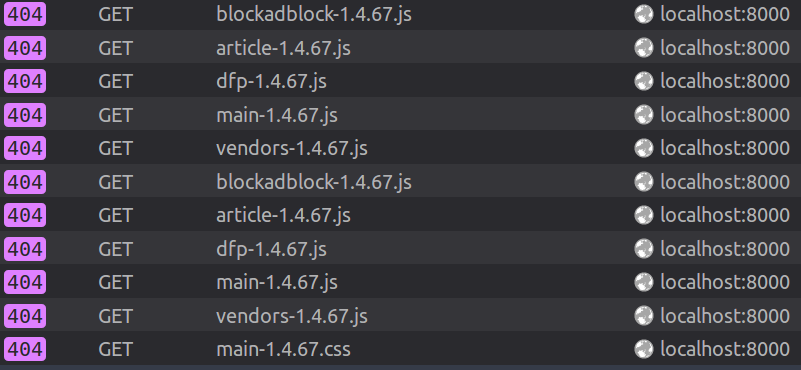
This is happening due to your local static file not built correctly.
To fix this issue, try to run `gulp buildDev` again in your **static\_src** folder and clear your browser's cache!
## Debugging Django with Docker
(This trick works if you run docker-compose in detached mode (`docker-compose up -d`))
You can use `pdb` to debug python code ([quick intro](https://github.com/spiside/pdb-tutorial)) (think of `gdb` for your python code). Add the following line to where you want to debug the code:
```python
import pdb; pdb.set_trace()
```
This will stop the code execution, but now we need to attach our terminal to the running django container. Before we do so, make sure the following two lines are in `docker-compose.yml` under `django` container config that allows the container to be attached for debugging:
```
stdin_open: true
tty: true
```
If those are in right place, run the code until execution hit the `pdb.set_trace()` line.
Run `docker attach --detach-keys z ubyssey-dev` to start debugging, and exit out of the debugging session by pressing `z` button
## Django Migrations with Docker
Whenever we want to update our database scheme, Django require us to do this through [migrations](https://docs.djangoproject.com/en/2.1/topics/migrations/) :snake:
Normally you would run `python manage.py migrate` to run mingrations in typical Django migrations in your local machine. However, because our applications live inside [Docker containers](https://www.docker.com/resources/what-container), we need to somehow apply changes to the container image instead of your local machine. Use these commands to do so:
```bash
# Move into Ubyssey project dir
cd ~/ubyssey-dev
# Make sure to start docker containers. -d flag is for starting containers in the background
docker-compose up -d
# Attach current terminal session to Docker
docker exec -t -i ubyssey-dev bash
# cd into ubyssey.ca project folder
cd ./ubyssey.ca
# Run migration
python manage.py migrate
# Exit from docker container
exit
```
## Node-sass binding error
You might run into an error that look something like this in gulp container while using our Docker setup:
```
Error: Missing binding /Users/Dan/Library/Application Support/Atom/dev/packages/source-preview-sass/node_modules/node-sass/vendor/darwin-x64-47/binding.node
Node Sass could not find a binding for your current environment: OS X 64-bit with Node.js 6.x
Found bindings for the following environments:
* OS X 64-bit with Node.js 6.x
This usually happens because your environment has changed since running `npm install`.
Run `npm rebuild node-sass` to build the binding for your current environment.
```
In that case, change a line in your `docker-compose.yml` file where it says:
```yaml
gulp:
build: .
command: bash -c "cd ubyssey.ca/ubyssey/static && yarn && gulp"
```
to
```yaml
gulp:
build: .
command: bash -c "cd ubyssey.ca/ubyssey/static && yarn install --force && gulp"
```
## Admin not loading
When the admin page looks blank, that means the dispatch version is out of sync with ubyssey.ca repo

Solve this by going into dispatch folder, and running `python setup.py develop`
## How to access Docker MySQL console
In order to inspect local DB in docker, you need to attach command line session to running docker container. Run the following:
```bash
docker exec -it ubyssey_db bash -l
```
Once you're in, run the usual mysql command to run the console
```bash
# Pass is ubyssey
mysql -u root -p
```
# Office Hour
Office hour meetings for the September 2020- December 2020 semester will take place at 11AM - 1PM Tuesday and Thursdays.
The meeting proper will likely be the first hour with the second hour mostly existing so we can help students out with tech stuff! Feel free to drop in (or leave early).
These meetings are a chance to get everybody in the same room (proverbially) to chat about assignments, ongoing projects, and to allow the web developer or anybody else to answer questions about technical problems.
## Slack
We do all of our communication via [Slack](https://slack.com/)! Web volunteers will be available to answer any questions as they arise. To get the invite to `#web-volunteers` channel send an email with your full name to our web developers at [Contact Us](https://www.ubyssey.ca/contact/)!
# Code of Conduct
## Why have Code of Conduct?
This Code of Conduct is designed to help all of us build a pleasant, productive, and fearless community. The purpose of the Code of Conduct is not to burden the team with a bunch of needless rules, or to give us a punishment mechanism for people "being bad," or even to correct things that have been wrong in the past. We are striving to make our community a great group of people to work with.
## Overview
The Ubyssey is dedicated to providing a harassment-free learning environment and community for everyone, regardless of gender, sexual orientation, disability, physical appearance, body size, race, religion, or anything else. We do not tolerate harassment in any form.
All communication in Ubyssey spaces, in person and online, should be appropriate for a professional audience including people of many different backgrounds. Sexual language and imagery is not appropriate in Ubyssey community spaces in any context.
While Ubyssey is a community of students, it's also a community of friends. We ask you to be aware of the fact that conversations that may be appropriate within the context of a specific friendship or relationship with another Ubyssey member may be inappropriate in the Ubyssey space or in a group conversation with Ubyssey members you don't know well.
Be kind to others. Do not insult or put down other members. Remember that harassment and sexist, racist, or exclusionary jokes are not appropriate for Ubyssey.
Ubyssey members violating these rules may be asked to leave the community at the sole discretion of the Ubyssey web developers.
## Social Rules
### No feigning surprise
The first rule means you shouldn't act surprised when people say they don't know something. This applies to both technical things ("What?! I can't believe you don't know what the stack is!") and non-technical things ("You don't know who RMS is?!"). Feigning surprise has absolutely no social or educational benefit: When people feign surprise, it's usually to make them feel better about themselves and others feel worse. And even when that's not the intention, it's almost always the effect. As you've probably already guessed, this rule is tightly coupled to our belief in the importance of people feeling comfortable saying "I don't know" and "I don't understand."
### No well-actually's
A well-actually happens when someone says something that's almost - but not entirely - correct, and you say, "well, actually…" and then give a minor correction. This is especially annoying when the correction has no bearing on the actual conversation. This doesn't mean the Recurse Center isn't about truth-seeking or that we don't care about being precise. Almost all well-actually's in our experience are about grandstanding, not truth-seeking. (Thanks to Miguel de Icaza for originally coining the term "well-actually.")
### No back-seat driving
If you overhear people working through a problem, you shouldn't intermittently lob advice across the room. This can lead to the "too many cooks" problem, but more important, it can be rude and disruptive to half-participate in a conversation. This isn't to say you shouldn't help, offer advice, or join conversations. On the contrary, we encourage all those things. Rather, it just means that when you want to help out or work with others, you should fully engage and not just butt in sporadically.
### No subtle -isms
Our last social rule bans subtle racism, sexism, homophobia, transphobia, and other kinds of bias. This one is different from the rest, because it covers a class of behaviors instead of one very specific pattern.
Subtle -isms are small things that make others feel unwelcome, things that we all sometimes do by mistake. For example, saying "It's so easy my grandmother could do it" is a subtle -ism. Like the other three social rules, this one is often accidentally broken. Like the other three, it's not a big deal to mess up – you just apologize and move on.
Thank you for helping make this a welcoming, friendly community for all.
## Footnote
We borrowed parts of [DigitalOcean's Engineering Code of Conduct](https://github.com/digitalocean/engineering-code-of-conduct) and [Recurse Center's Code of Conduct](https://www.recurse.com/code-of-conduct).